
Features
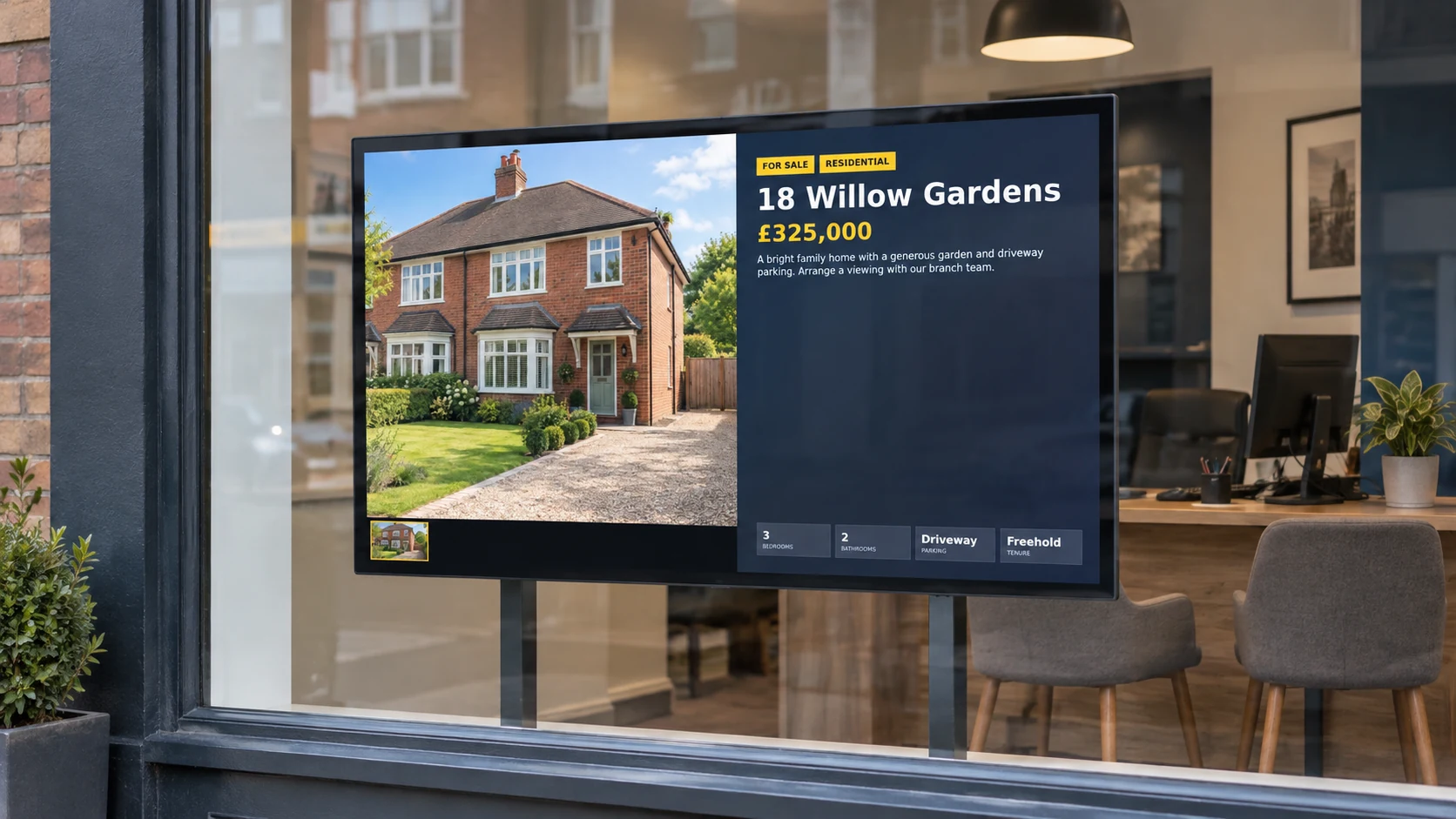
What you can show in your estate agency
Keep property listings and branch messages current across your screens.
EXAMPLES ON SCREEN
See what your screens can show.
More stopping power
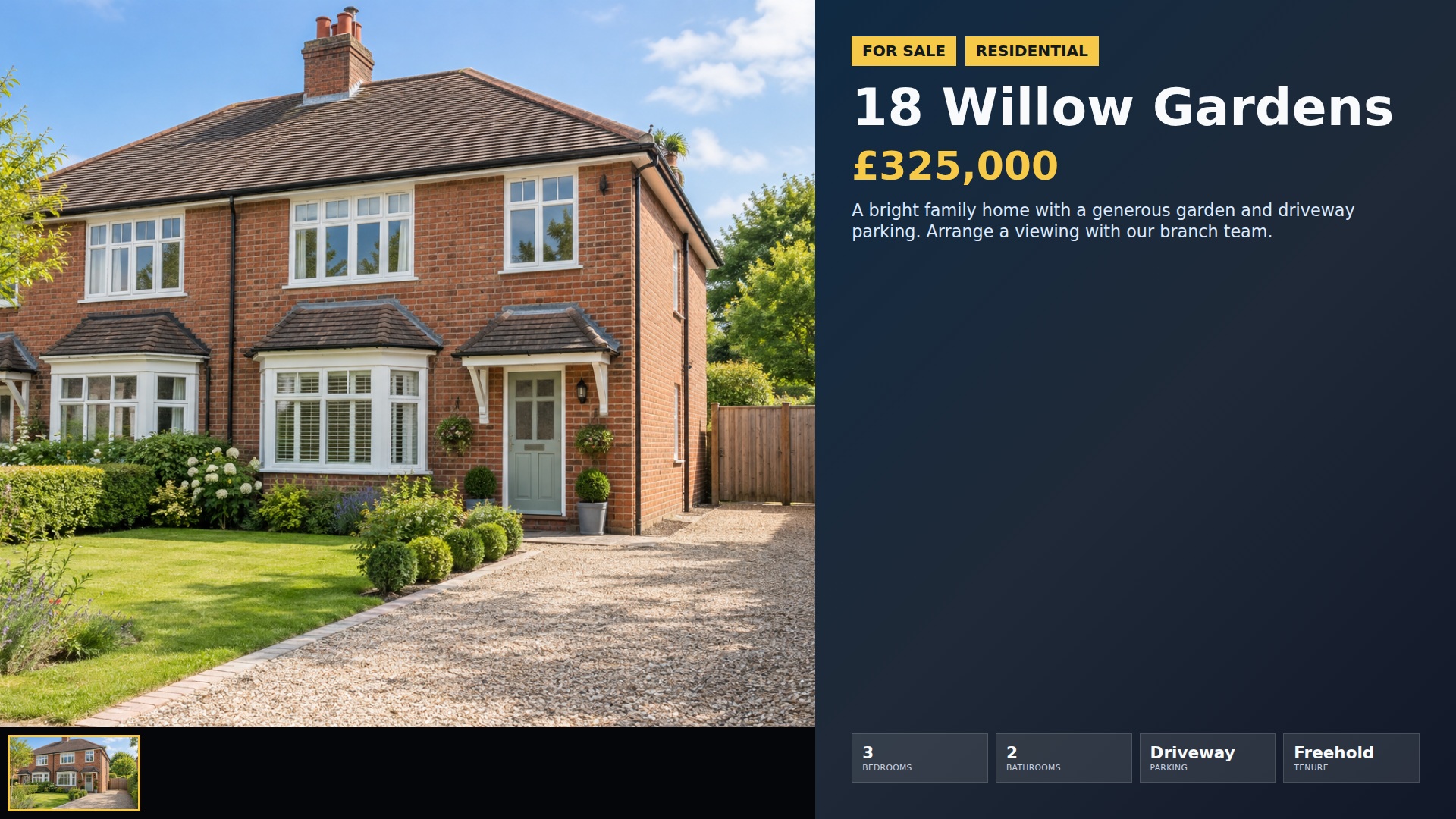
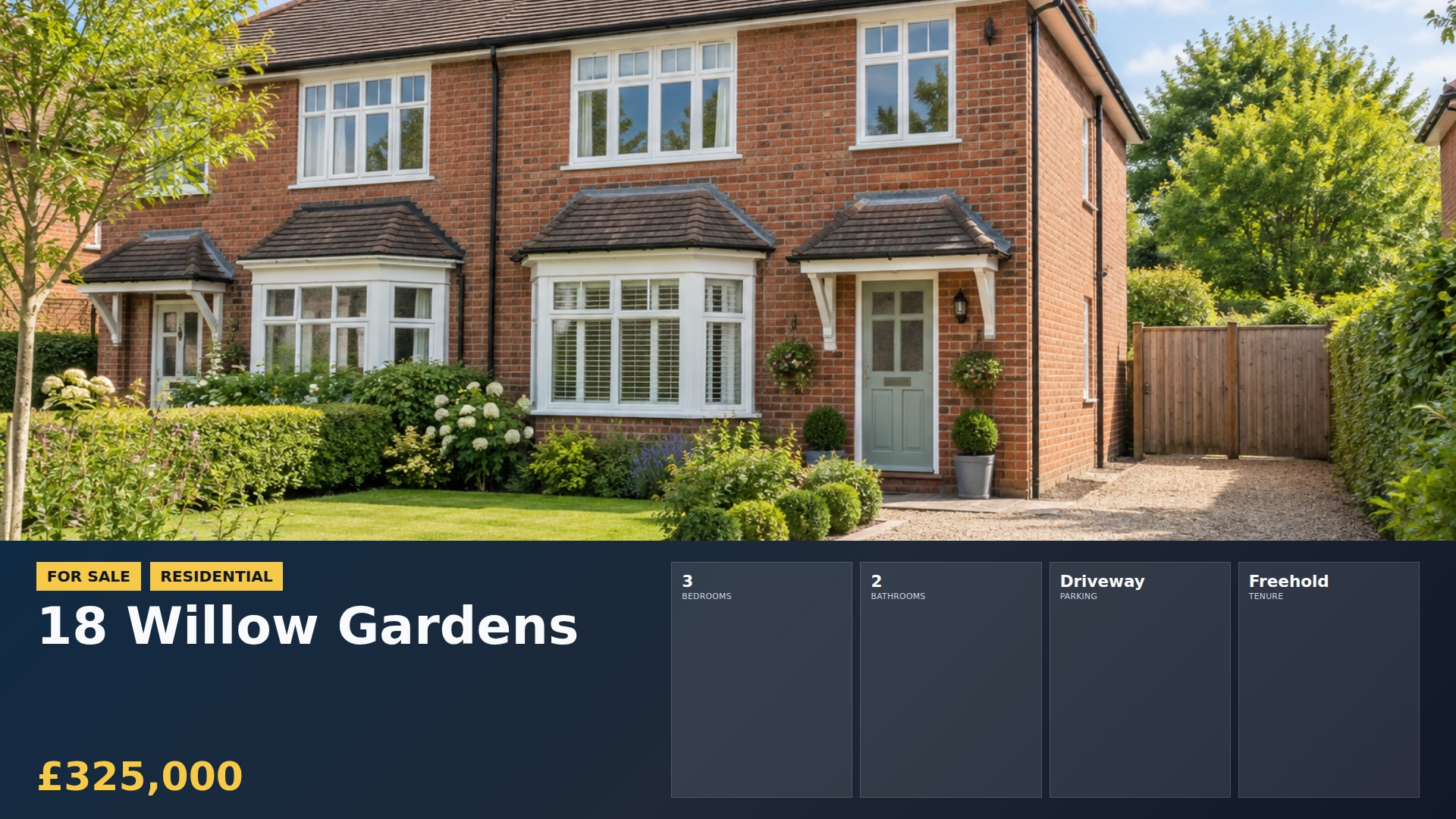
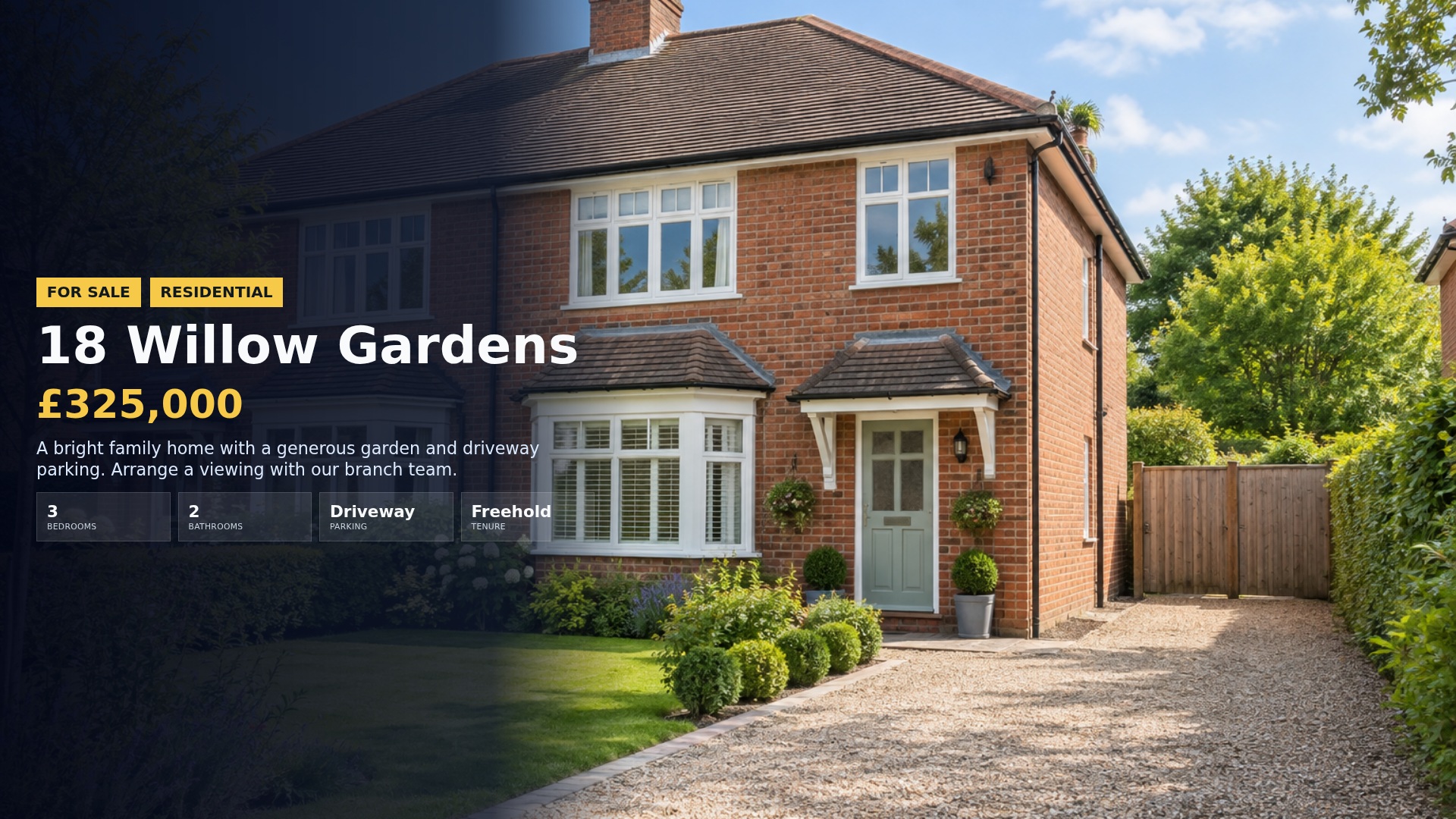
Catch attention outside the branch with large property photographs and short details people can read.
More detailLess detail
Rotate large property photos and short, readable details to catch attention from people passing the branch.
Fresher listings
Keep new instructions and price changes visible while removing or replacing listings that are no longer available.
More detailLess detail
Bring new instructions and price changes forward, then remove or replace properties that are no longer available.
More reasons to enquire
Balance property listings with valuation invitations, landlord messages and clear ways to contact the branch.
More detailLess detail
Balance listings with valuation invitations, landlord messages, buyer registration and branch contact details.
Update from your dashboard
Keep property information, photographs and branch displays up to date as your instructions and listings change.
More detailLess detail
Add property details and photos once, choose how they look, and keep every branch display current as listings change.
Choose what plays
Arrange listing and campaign content into playlists, then schedule different programmes for different days and times.
More detailLess detail
Combine your content in playlists and schedule it for different days and times.
Give every screen a purpose
Give window and reception screens their own playlists and check recent connection status from your account.
More detailLess detail
Choose a playlist for each screen and check its recent connection status from your account.
Add property media and document-based campaigns
Add genuine property photos, video tours and brochure pages to Media, then review everything before display.
More detailLess detail
Upload genuine property photographs, branch graphics and MP4 video tours into Media. Import a PDF brochure or PowerPoint campaign as ordered still images, review the conversion and choose its place in a playlist or folder slideshow. Presentation animations, transitions and audio are not retained; prepare a video when the material depends on motion.
Schedule branch displays and expire campaigns
Schedule window and reception programmes, with expiry dates for temporary campaigns and separate checks on listing availability.
More detailLess detail
Choose the running order and duration of listing and promotional items, then assign window and reception screens their own playlists. Schedule different programmes by day or time, such as evening window content. Set expiry dates on open-day graphics or time-limited campaigns so they stop being selected after the deadline, and review listing availability separately.
Keep branch details visible with overlays
Keep branch branding and useful links visible while protecting the readability of prices and property details.
More detailLess detail
Apply a reusable branch logo, text, date/time or QR code overlay to selected playlist items. Use a ticker for short branch notices and Special pages for a clock, event countdown or weather. Check the preview to ensure additions do not cover prices or key property details. Weather, external pages and other live content require connectivity.
Monitor window and reception screen connections
Review player connections by branch and screen position, with clear guidance on supported devices and offline playback.
More detailLess detail
Name screens by branch and position so recent check-ins are easy to identify. Use available email alerts to investigate players that stop reporting. Playback runs in a compatible browser or on Android equipment. A suitable configured player can continue downloaded media offline, while listing updates and third-party web content need the connection to return.
Send short branch and appointment notices
Send a short appointment direction or service notice to reception, then return the screen to its normal playlist.
More detailLess detail
Create a named screen-message setting for reception, then send a temporary appointment direction or service notice from admin or the separate staff page. The player collects queued messages at check-in, interrupts its normal content and returns to playback afterwards. Choose a suitable display duration; an optional chime depends on the device’s speakers and audio permissions.
Maintain property details as instructions change
Update photographs, prices and availability as instructions change, then preview the mix from the pavement.
More detailLess detail
Enter property information and attach genuine listing photographs, then choose the properties or campaign artwork for the branch playlist. Review prices, key features and availability when an instruction changes, a sale is agreed or a property is let. Keep valuation and landlord messages alongside listings, and preview the mix from the pavement before leaving it running.